How to Create a Category

iRobot and
Last updated on Apr 1, 2022
Views: 37
View statistics:
- Past 24 Hours:
- 0
- Past 7 Days:
- 0
- Past 30 Days:
- 0
- All Time:
- 37
Comments: 0
No one has left comments on this guide. Will you be first?
Go to guide commentsCompleted: 0 1
No one has marked this guide "completed." Will you be the first?
1 person has marked this guide "completed." It's you — great job!
Favorites: 0 1
No one has favorited (and subscribed to) this guide. Will you be the first?
1 person has favorited (and subscribed to) this guide — and that's you!
Introduction
Go to step 1 ↓This guide demonstrates how to create a category page.
-
-
-
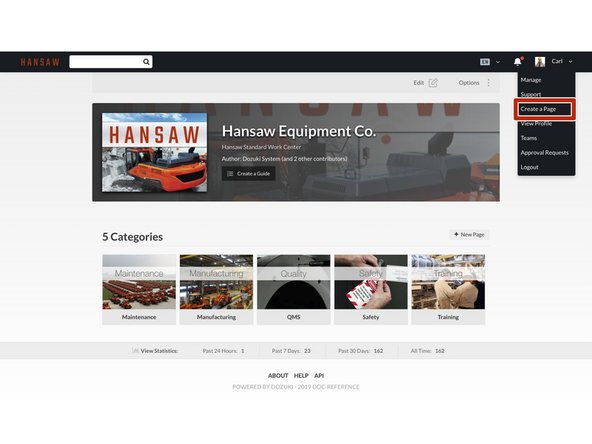
Click on your name on the right of the site header and select Create a Page from the drop-down menu.
-
-
-
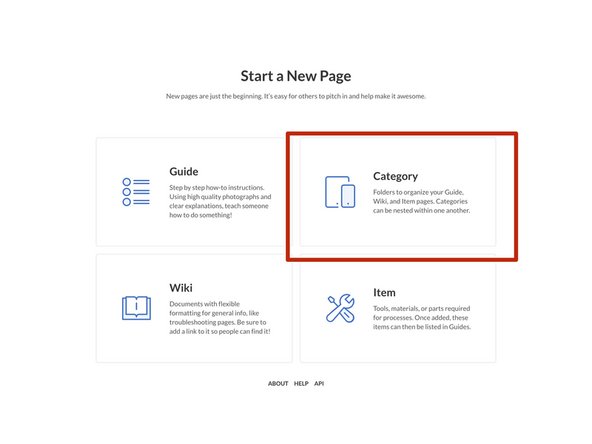
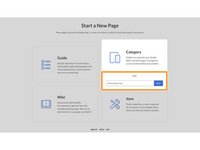
Select Category from the page options list.
-
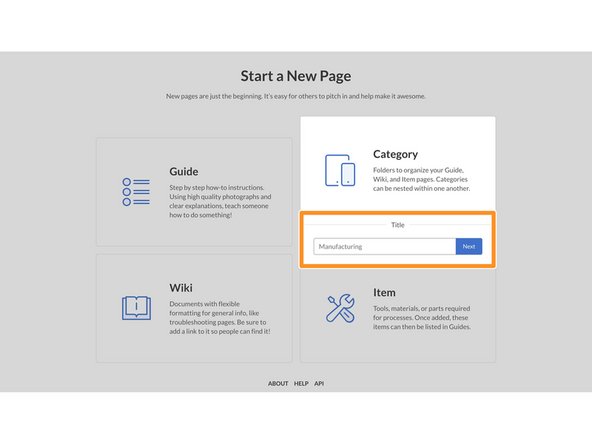
Enter the Title for the new category page.
-
-
-
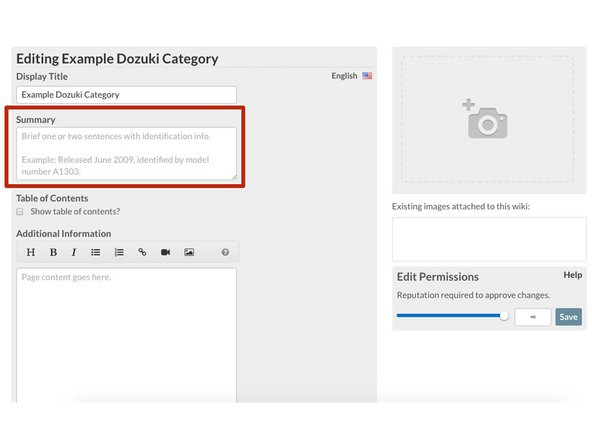
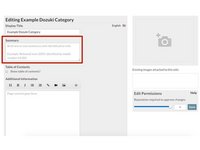
Add a Summary for the page.
-
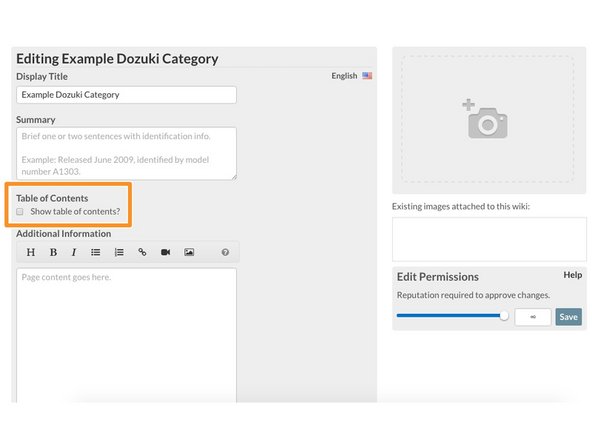
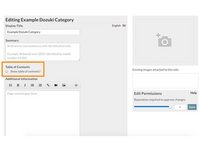
Check the Table of Contents box to add a table of contents.
-
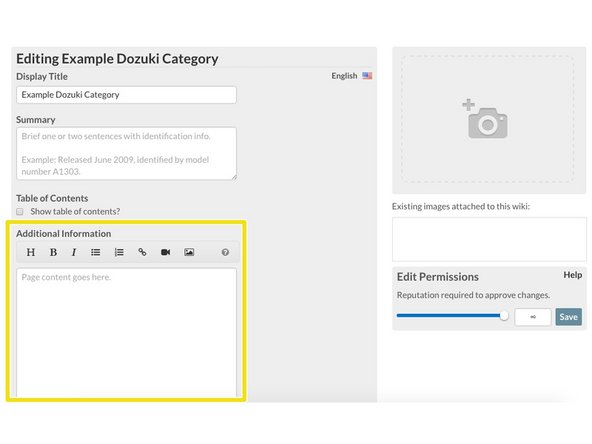
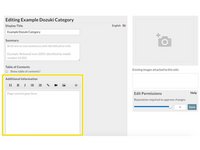
Add any Additional Information to your category page.
-
-
-
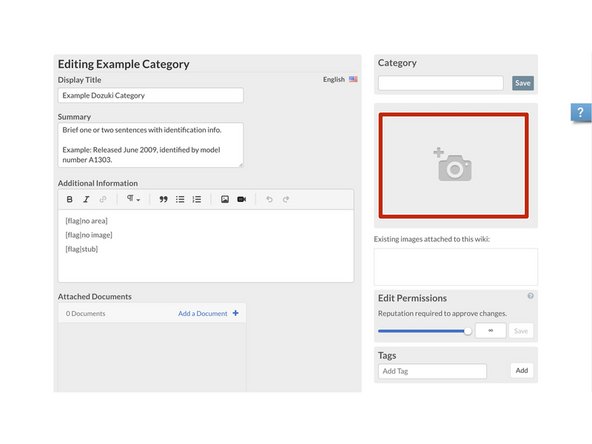
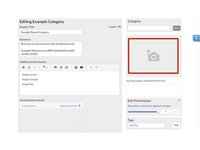
Add a header image using the Media Manager.
-
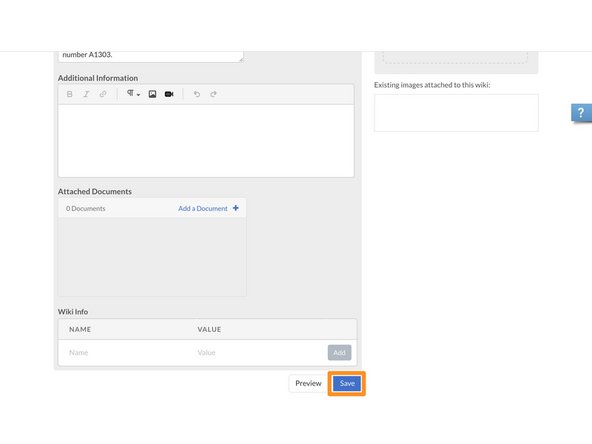
Click Save and view your category. The next step will be to Organize Your Category Page.
-
-