
How to Feature a PDF on a Guide

iRobot and 3 other contributors
Last updated on Mar 16, 2022
Views: 21
View statistics:
- Past 24 Hours:
- 0
- Past 7 Days:
- 0
- Past 30 Days:
- 0
- All Time:
- 21
Comments: 5
4 comments on steps, 1 guide comment.
Go to guide commentsCompleted: 1 2
1 person has marked this guide "completed." Will you be next?
2 people have marked this guide "completed." Including you — great job!
Favorites: 0 1
No one has favorited (and subscribed to) this guide. Will you be the first?
1 person has favorited (and subscribed to) this guide — and that's you!
Introduction
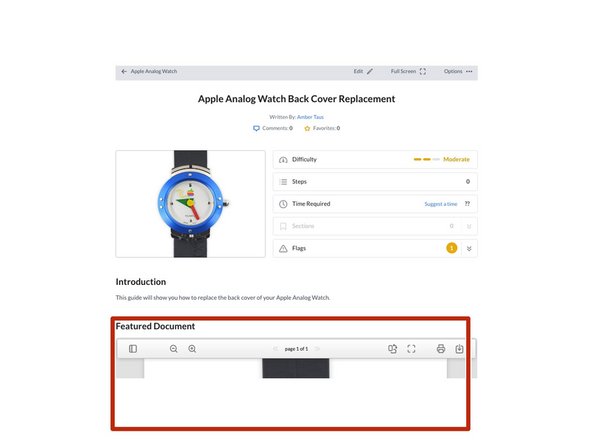
Go to step 1 ↓This guide demonstrates how to feature a PDF document at the beginning of a guide page.
-
-
-
Click Edit at the top of the guide to enter the Guide editing interface.
-
Click on the Details tab to edit the guide.
-
Scroll down to the bottom of the Details tab page to the Attached Documents section on the left, beneath the Conclusion field.
-
Click on the Add New button on the right-side of the page, beneath the Conclusion field.
-
-
-
The Media Manager will launch. Click on the Add Media button, in the upper-left corner of the page or in the center of the page.
-
Drag & drop the PDF into the drag/drop field, or click on the browse for files link to add the PDF from a file.
-
When the PDF loads, it will appear in the Media Manager. Click on the PDF to add the document to the guide page.
-
-
-
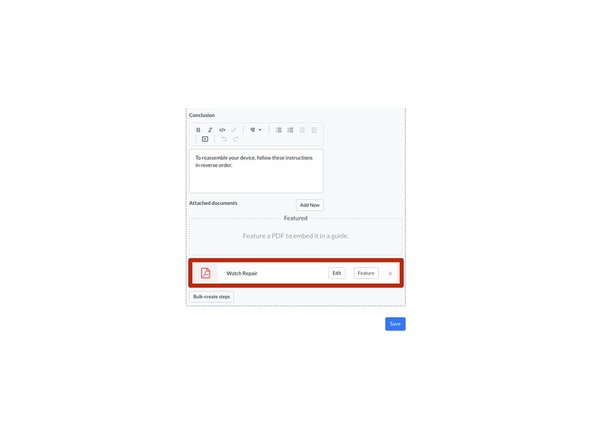
To confirm that the PDF is attached, view it in the Attached Documents section at the bottom of the Details page.
-
To save the changes, click Save in the bottom-right of the page.
-
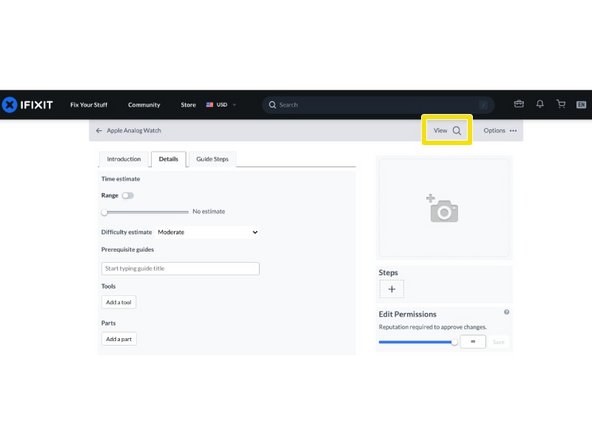
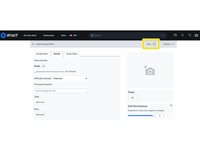
To view the attached document, click on the View button in the top-right of the site header.
-
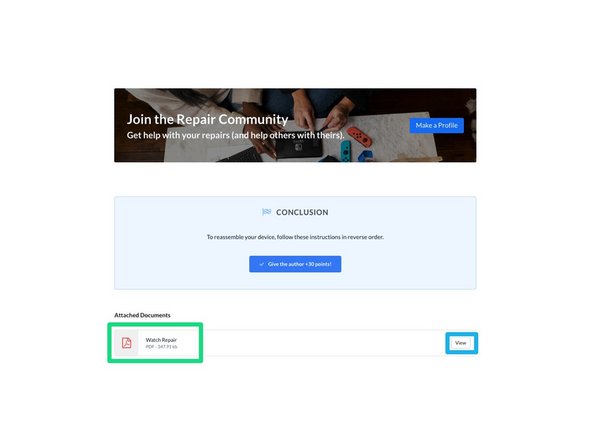
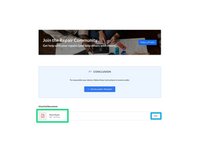
Scroll to the bottom of the guide. Beneath the FINISH LINE, the PDF will be listed under Attached Documents.
-
Click on the View button to open the PDF as a final verification.
-
-
-
-
-
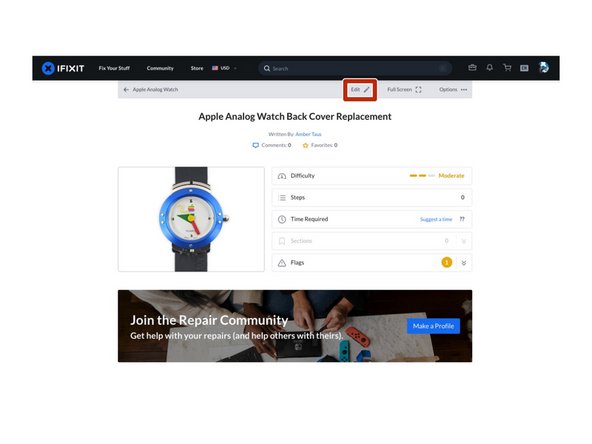
Open the guide with the PDF to be featured.
-
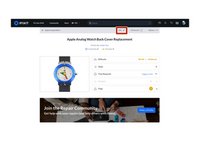
Click on the Edit button in the top-right of the page, just beneath the site header.
-
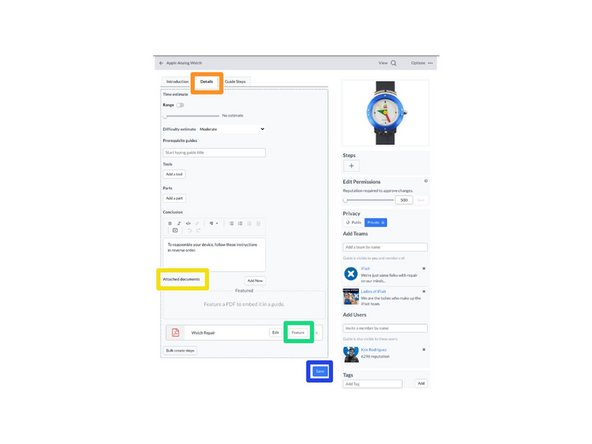
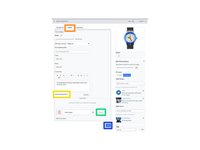
Click on the Details tab at the top of the page.
-
Scroll down to the Attached Documents section.
-
Click on the Feature button on the listed PDF.
-
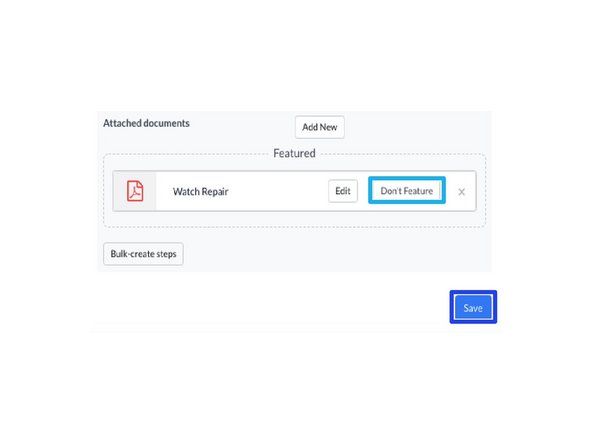
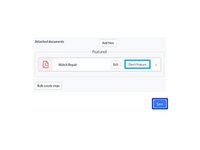
To remove an existing Featured PDF, click on the Don't Feature button on the PDF listed in the Featured section.
-
Regardless of your change, always click Save to save the changes.
-
-


Cancel: I did not complete this guide.
One other person completed this guide.