Introduction
Use this guide to create a guide translation manually when the language version doesn't exist yet. If a clearly labelled automated translation is already live, open that version and edit it to proofread the existing text instead.
Read the iFixit Translator Guidelines before you begin. Check warnings, actions, omitted text, numbers, measurements, directions, tool and part names, and links against the source.
If the source guide itself is incorrect, improve the source first, then translate the correction. This makes the improvement available to every language.
Your corrections are preserved while the corresponding source content remains unchanged. If the source is updated, the existing translation—including community improvements—is used as context for the new version, but affected passages may need to change too.
Thank you for helping make repair information available around the world!
-
-
-
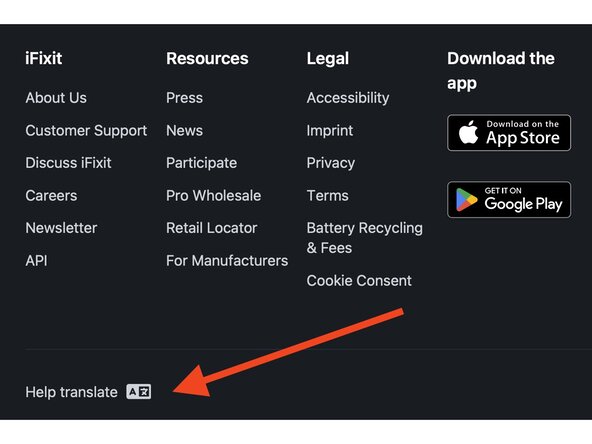
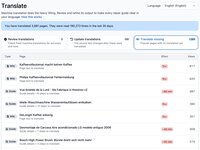
The Help Translate button in the footer will lead you to an overview of the most popular guides not available in your language. But you're also welcome to start translating any guide you fall in love with!
-
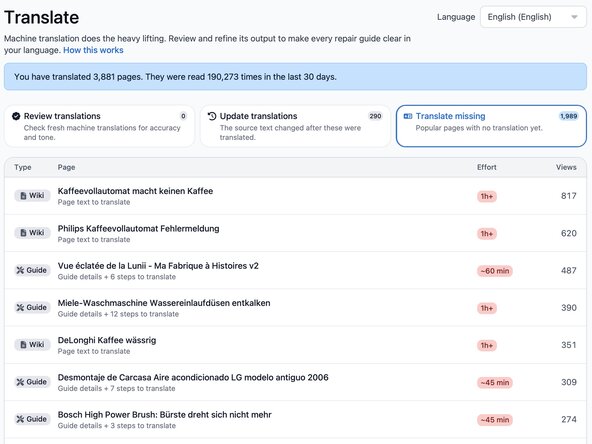
On Translate Missing, choose a guide to translate. The page automatically shows content missing from the language you’re currently browsing in.
-
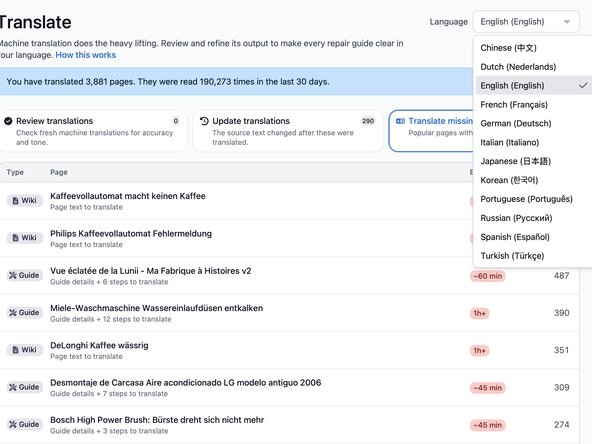
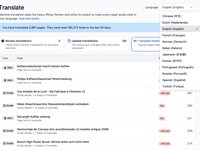
To translate into a different language, use the language dropdown on the Translate Missing page. If you choose a wiki, follow How to Manually Translate Wikis.
-
-
-
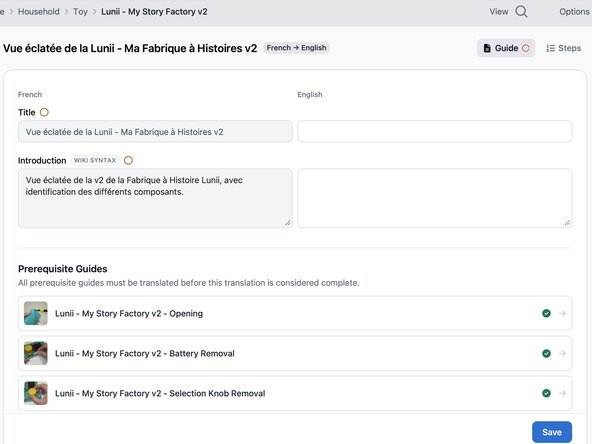
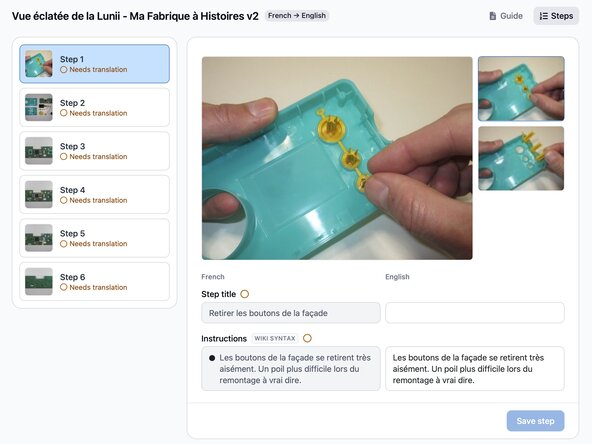
After you select a guide, the translation interface opens automatically. The source language appears on the left, and the target-language fields appear on the right.
-
-
-
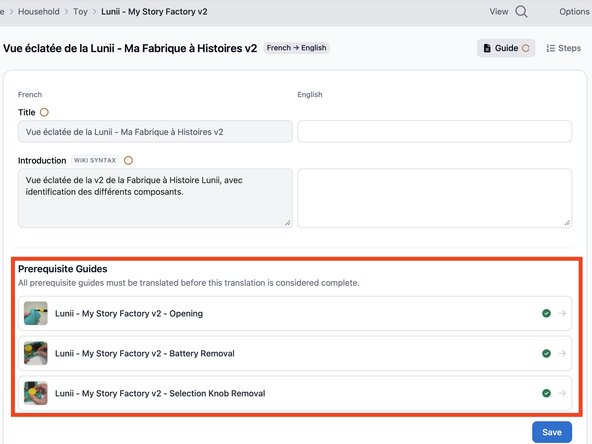
Check whether the guide uses prerequisite guides that also need translation.
-
The translation status of each prerequisite appears below the guide title and introduction.
-
Translate incomplete prerequisite guides first. This helps readers and gives you context for the main guide.
-
-
-
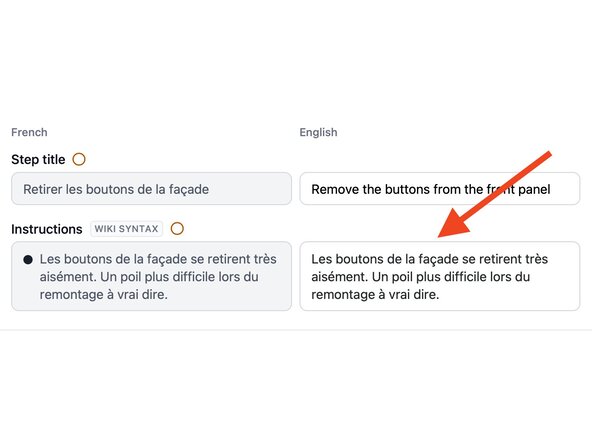
The instructions field may be prefilled with source-language text. Replace all source text with your translation before selecting Save step.
-
You may use a translation tool such as DeepL for a first draft, but review and revise the result before saving.
-
If the translation exceeds the 350-character limit for a bullet, shorten it or split it into two bullets.
-
-
-
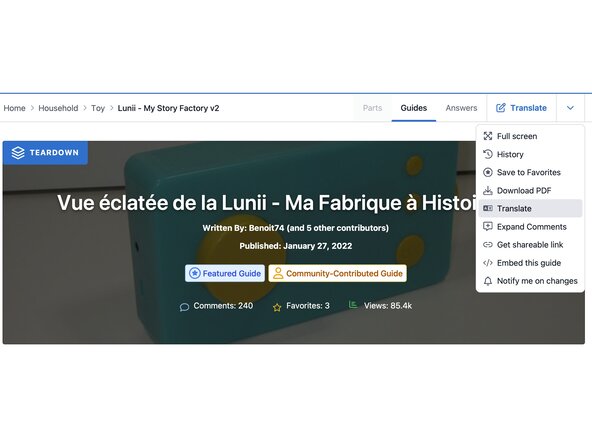
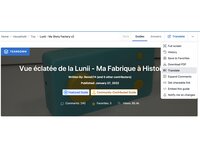
To check your progress or continue later, select Translate on the guide page.
-
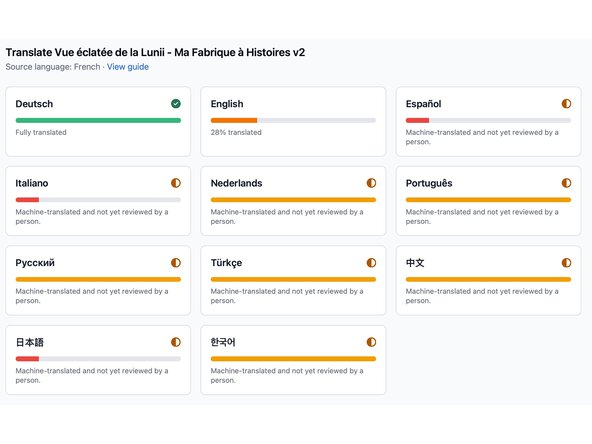
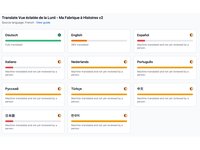
The translation dashboard shows the status of each language and guide section.
-
-
-
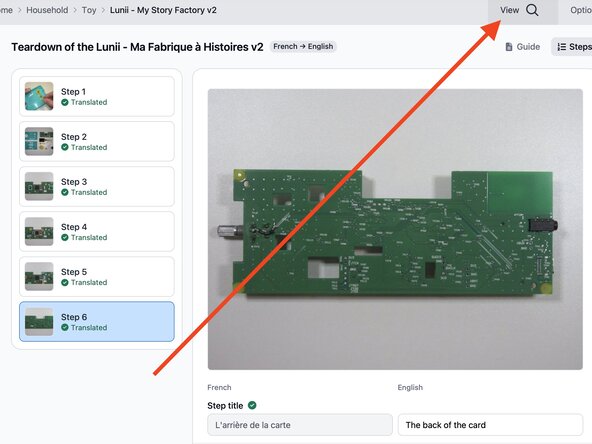
After translating every step, select View and read the guide in the target language.
-
If the translation needs more work, return to the translation screen or edit an individual step.
-
-
Cancel: I did not complete this guide.
One other person completed this guide.