Introduction
Use this guide to create a wiki translation manually when the language version doesn't exist yet. If a clearly labelled automated translation is already live, open that version and edit it to proofread the existing text instead.
Read the iFixit Translator Guidelines before you begin. Check warnings, actions, omitted text, numbers, measurements, directions, technical terms, and links against the source.
If the source wiki itself is incorrect, improve the source first, then translate the correction. This makes the improvement available to every language.
Your corrections are preserved while the corresponding source content remains unchanged. If the source is updated, the existing translation—including community improvements—is used as context for the new version, but affected passages may need to change too.
Thank you for helping make repair information available around the world!
-
-
-
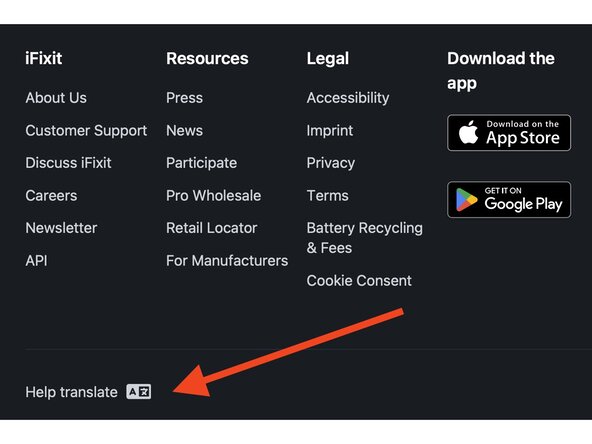
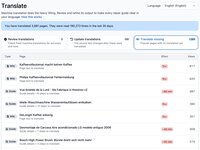
Select Help Translate in the footer to open the translation overview.
-
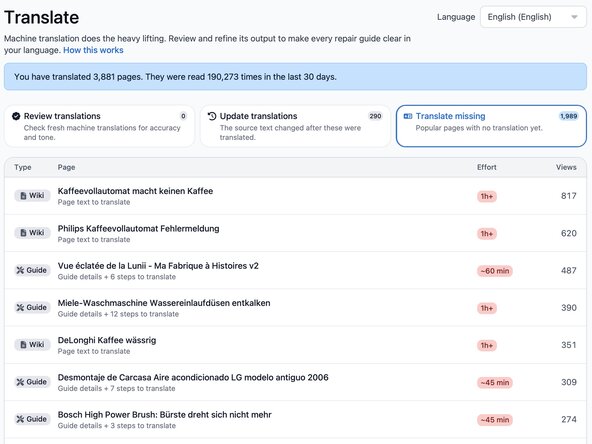
On Translate Missing, choose a wiki to translate. The page automatically shows content missing from the language you're currently browsing in.
-
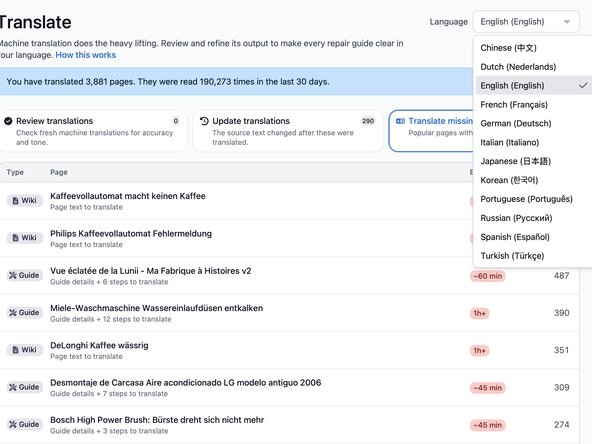
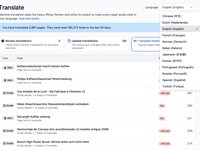
To translate into a different language, use the language dropdown on the Translate Missing page.
-
If you choose a guide, follow How to Manually Translate Guides.
-
-
-
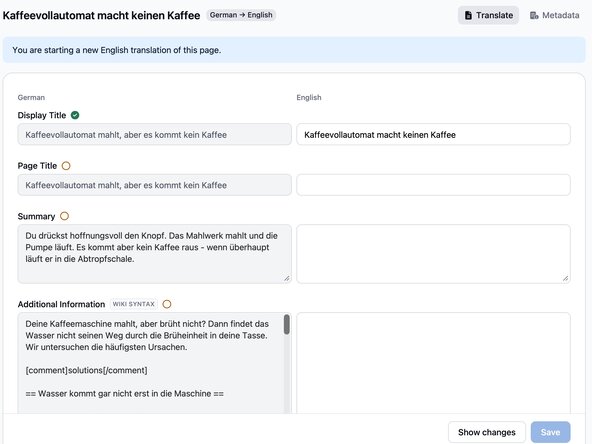
After you select a wiki, the translation interface opens automatically. The source language appears on the left, and the target-language fields appear on the right.
-
Enter the translation in the fields on the right.
-
-
-
Translate the Display Title, Page Title, Summary, and additional information.
-
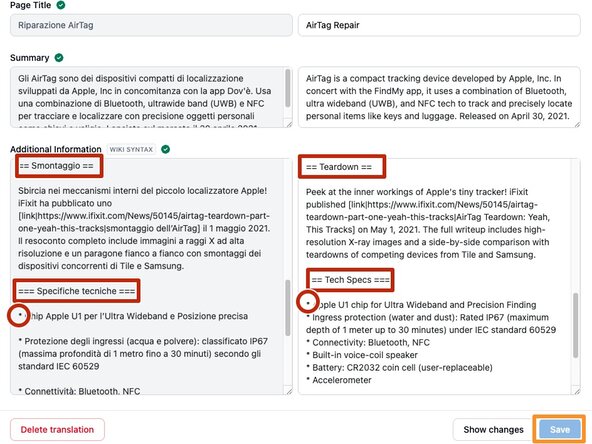
Preserve the wiki markup. Keep formatting characters such as = for headings and * for bullets. Learn more in Wiki Formatting and Syntax.
-
Select Save when you're finished or want to pause.
-
-
-
Translate each field while comparing it with the source on the left.
-
If you leave the translation interface, return to Translate Missing and select the wiki again to continue.
-
-
-
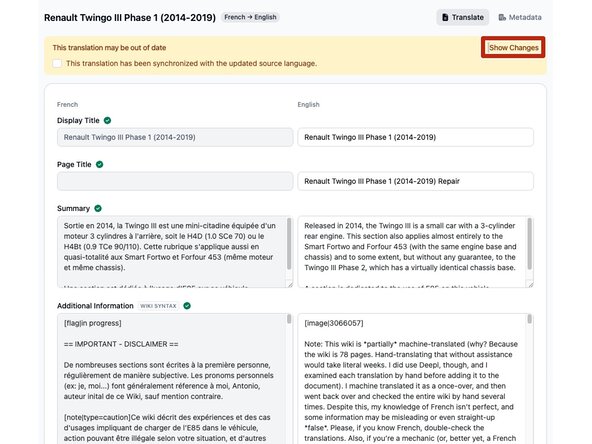
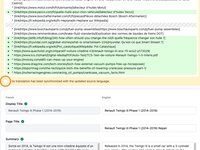
If the wiki has been already translated and the original version later updated, you will see a banner saying This translation may be out of date.
-
Click on Show changes to expand them.
-
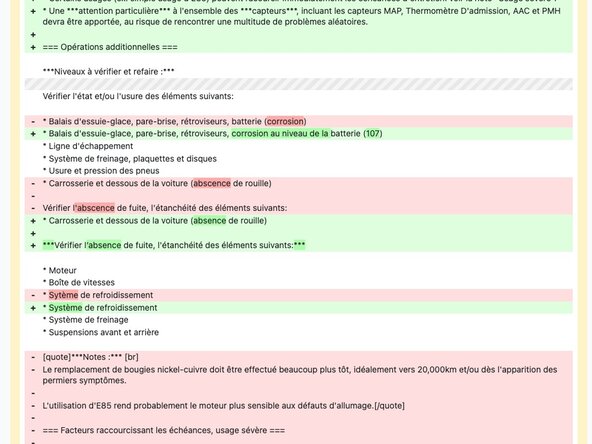
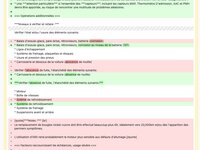
The deleted parts are marked in red, the added ones in green.
-
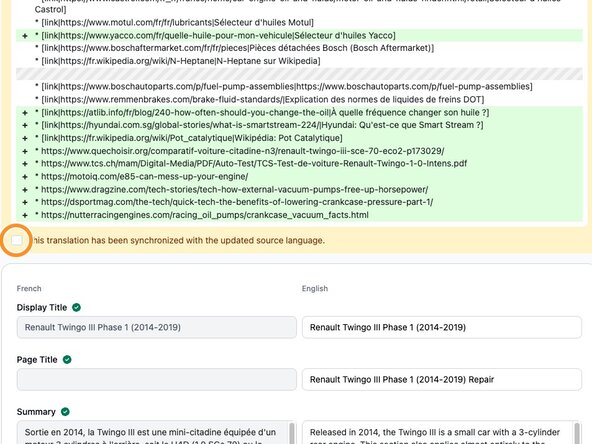
Make sure to take over all changes in your translation. After this, scroll to the bottom of the green-red changes section and check the box This translation has been synchronized with the updated source language. Now you can save your translation.
-
-
-
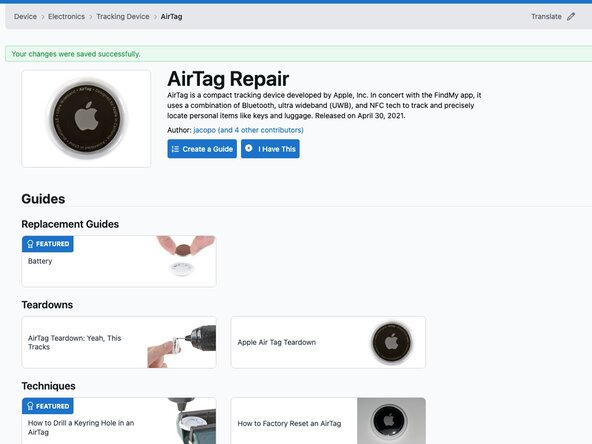
After translating the entire wiki, select Save and read the target-language page from beginning to end.
-
Compare it with the source. Check warnings, actions, omitted text, numbers, measurements, directions, technical terms, and links.
-
Edits from contributors below the patrol threshold are saved as unverified revisions. Until someone reviews them in Patrol, readers can switch between the latest verified snapshot and the newer unverified version, which displays a warning banner. Learn more about Content Patrol.
-
-